I am getting sick and tired of reading about how failure Vista is. Vista being late is one thing, but stating that Vista is failure and XP is better, is totally wrong. I have Vista running on four of PCs running in my house and all are running very well. And no I don't have the latest hardware on all four of my PCs
This notion that Microsoft talking about Windows7 indicates Vista failure is also wrong. Microsoft have indicated regardless how success the current OS is that they will have a two year release cycle.
In all these reports that talk about how bad Vista is, never mention any specifics why Vista is a failure. It seems that picking on Vista without providing any details is becoming a popular trend
Showing posts with label Vista. Show all posts
Showing posts with label Vista. Show all posts
Wednesday, May 28, 2008
Monday, June 11, 2007
Google: this is how to disable Vista Desktop Search Index
It is totally untrue the only way to turn off Local Desktop search is by disabling the Windows Search Service. Here are the steps:-
- Start > Control Panel > Indexing Options
- Modify > Show All Locations
- Now Uncheck all the locations currently check
- Uncheck the Offline files and Outlook if selected.
Monday, April 16, 2007
Advance Query Sytnax - AQS Part 2
This is a follow up to the first post Advance Query Sytnax - AQS Part 1
To search for file based on it's kind, you use the kind property. For example:
Kind:Music OR Pic will return all your music and pic files
You can also combine other conditions:
Kind:Music AND Artist:Prince
or
Kind:Music Artist:Prince since AND is implicit
Enabling NQS (Natural Query Syntax) will simplify the syntax
To search for file based on it's kind, you use the kind property. For example:
kind:Music ... you can also use song, songs
Kind:email ... you can also use mail, message, messages, emails
Kind:document ... you can also use documents, doc, docs
Kind:Meeting ... you can also use calendar, appointment
Kind:Picture ... you can also use Pic, Pics, Photo, image, images.
Kind:Music OR Pic will return all your music and pic files
You can also combine other conditions:
Kind:Music AND Artist:Prince
or
Kind:Music Artist:Prince since AND is implicit
Enabling NQS (Natural Query Syntax) will simplify the syntax
Music artist Prince
Music by prince
Pics taken last month
email received last week from John about presentation
You can search on all the properties any kind of file can have. For example. you can search for photos based on the Taken property. You can search for document based on it's author. For eample:
Kind:Document Author:David Johnson
or you do an exact match
Kind:Document Author:"David Johnson"
or you can take it further
kind:Document Author:="David Johnson"
The difference here: the first one is searching for author that contains "David Johnson". The second using the equal sign is searching for author with exact match.
I will be covering the Advance Query Sytnax - AQS Part 3 soonThursday, November 16, 2006
Vista Desktop Search - Advance Query Syntax (AQS) - Part 1
This feature will allow you to type your search string using a simple query language. The syntax is referred to: Advance Query Syntax or AQS. In additions, this syntax is also available in a more Natural Language syntax, which is referred to: Natural Query Syntax, or NQS. To take advantage of NQS, the option needs to be enabled in the Search options under the Folder Options dialog
AQS is very simple. In order to construct an AQS Search string you type the property name, and it’s value you are searching against.
If you are searching for an email from Dave on a particular date, the AQS Search string will look like this:
Kind:email from:Dave Sent:11/16/2006
The NQS form for this string is as follows:
Email from Dave sent 11/16/2006
Notice, the word kind as property is removed, and also the colons are removed.
Lets say you don’t remember the exact date but you remember the month, and you remember the topic of the email, so the AQS search will look like this:
Kind:email from:Dave Sent:11/2006 Subject:code review
Or you can write it in this form:
Kind:email from:Dave Sent:11/2006 About:code review
The difference here is that ‘About’ property is also mapped to Subject, and to other properties, but About sounds more natural. The NQS format will be
email from Dave sent 11/2006 about code review
or
email from Dave sent November about code review
In part 2 I will post what are the different properties to search on, and more advance topics such as combining search terms.

AQS is very simple. In order to construct an AQS Search string you type the property name, and it’s value you are searching against.
If you are searching for an email from Dave on a particular date, the AQS Search string will look like this:
Kind:email from:Dave Sent:11/16/2006
The NQS form for this string is as follows:
Email from Dave sent 11/16/2006
Notice, the word kind as property is removed, and also the colons are removed.
Lets say you don’t remember the exact date but you remember the month, and you remember the topic of the email, so the AQS search will look like this:
Kind:email from:Dave Sent:11/2006 Subject:code review
Or you can write it in this form:
Kind:email from:Dave Sent:11/2006 About:code review
The difference here is that ‘About’ property is also mapped to Subject, and to other properties, but About sounds more natural. The NQS format will be
email from Dave sent 11/2006 about code review
or
email from Dave sent November about code review
In part 2 I will post what are the different properties to search on, and more advance topics such as combining search terms.
Tuesday, October 31, 2006
Why Do I love Vista?
What is the biggest challenge people have with huge Hard disk space, Fast Internet Connection, advances in the Digital Photography, the introduction of the mp3 players?
The Answer: Finding your stuff
Vista provide an amazing search capapbility that was not available in XP, and it's built right in the OS.
You can search for your Music by specifying Artist, file type, Bit Rate. Pictures by the camera make, resolution, tags you specify...etc.
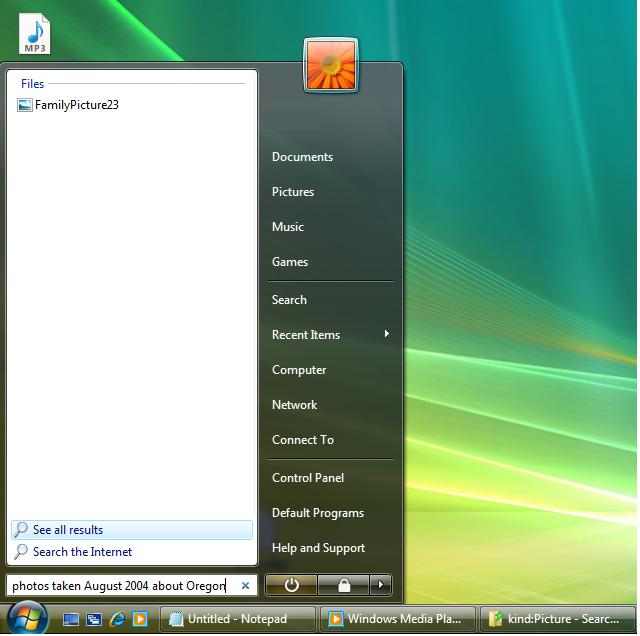
You can search by typing the following right in the Start Menu Search box or in any of the Search box which are all over the place
photos taken August 2004 about Oregon
The Answer: Finding your stuff
Vista provide an amazing search capapbility that was not available in XP, and it's built right in the OS.
You can search for your Music by specifying Artist, file type, Bit Rate. Pictures by the camera make, resolution, tags you specify...etc.
You can search by typing the following right in the Start Menu Search box or in any of the Search box which are all over the place
photos taken August 2004 about Oregon
Watch for posting on my blog that describe the Advance Query Syntax (AQS), and Natural Query Syntax (NQS) in great details in the near future.
Subscribe to:
Posts (Atom)


 Posts
Posts

